ASP.NET Core 5 | DataGrid Sorting
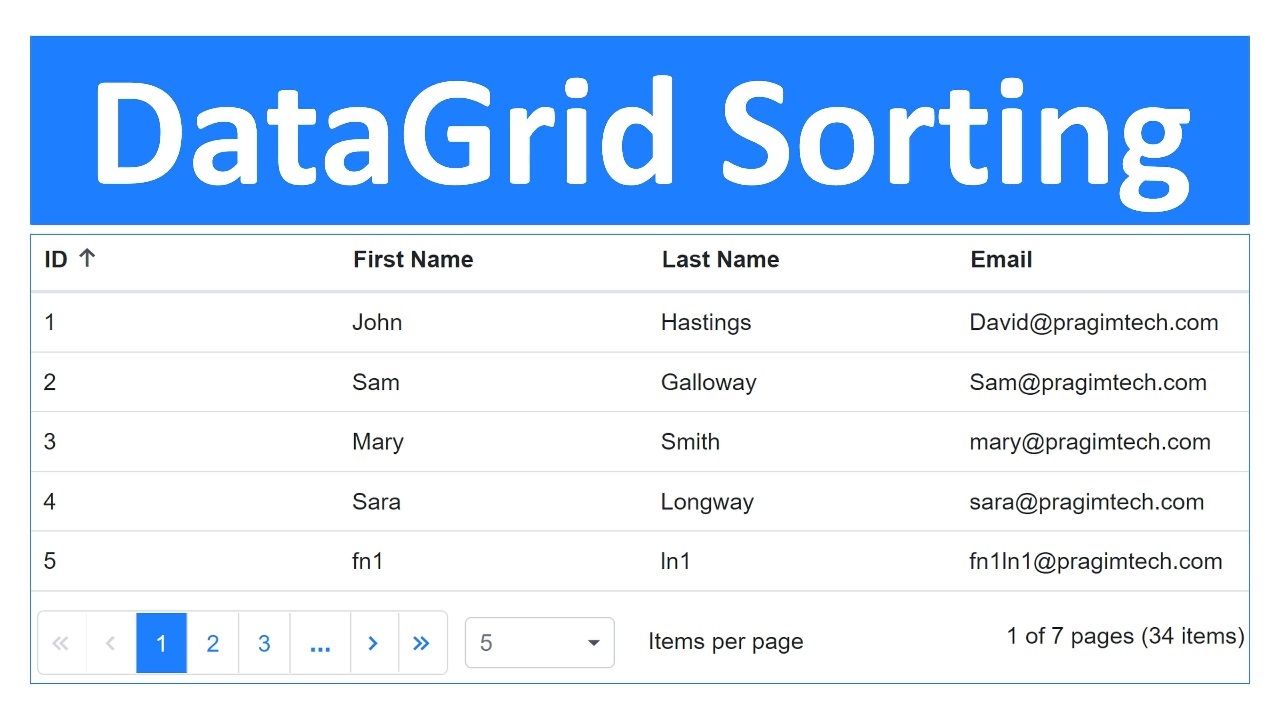
This is Part 9 of Web development with Blazor series. In this video, we will discuss how to perform sorting in Blazor DataGrid. We discussed paging in our previous video. Click here for the complete course page.
We are using Syncfusion DataGrid component and it's free to use. Click here to claim the free license.
Enable Sorting in Blazor DataGrid
- To enable sorting simply set
AllowSortingproperty to true. - To sort by a specific column, simply click on the column header.
- By default, the sorting order will be as
Ascending | Descending | None. - First click on a column header sorts it in the ascending order. Second click sorts it in the descending order and the third click clears the sorting.
- Use
GridSortSettingscomponent to customise sorting options. - Set
AllowUnsort="false"onGridSortSettingsif you want to disable clearing the sort on the third click. - To disable sorting for a particular column, set
AllowSortingproperty of thatGridColumntofalse.
<SfGrid DataSource="@Employees" AllowSorting="true">
    <GridColumns>
        <GridColumn Field=@nameof(Employee.EmployeeId) HeaderText="ID"></GridColumn>
        <GridColumn Field=@nameof(Employee.FirstName) HeaderText="First Name"></GridColumn>
        <GridColumn Field=@nameof(Employee.LastName) HeaderText=" Last Name"></GridColumn>
        <GridColumn Field=@nameof(Employee.Email) HeaderText="Email"></GridColumn>
    </GridColumns>
</SfGrid>
Blazor DataGrid Initial Sort Order
For example to have the data sorted by Employee ID column in the descending order when the DataGrid initially loads, use GridSortSettings as in the example below.
<SfGrid DataSource="@Employees" AllowSorting="true" AllowPaging="true">
    <GridSortSettings>
        <GridSortColumns>
            <GridSortColumn Field="EmployeeId" Direction="SortDirection.Descending">
            </GridSortColumn>
        </GridSortColumns>
    </GridSortSettings>
    <GridColumns>
        <GridColumn Field=@nameof(Employee.EmployeeId) HeaderText="ID"></GridColumn>
        <GridColumn Field=@nameof(Employee.FirstName) HeaderText="First Name"></GridColumn>
        <GridColumn Field=@nameof(Employee.LastName) HeaderText=" Last Name"></GridColumn>
        <GridColumn Field=@nameof(Employee.Email) HeaderText="Email" AllowSorting="false"></GridColumn>
    </GridColumns>
</SfGrid>
Multi-column sorting
- Hold the CTRL key and then click the column header to sort by multiple columns.
- The sorting order of the columns is displayed in the DataGrid header.
- To clear sorting for a specific column, press the
"Shift + mouse left click". - By default, multi-column sorting is turned ON. To turn it off set
AllowMultiSortingproperty tofalse.


© 2020 Pragimtech. All Rights Reserved.